Manage Resource Groups
You can create, edit, and delete resource groups in the DBCC, and assign database roles to them, without writing SQL. Resource groups limit the concurrency, CPU, memory, and disk I/O that queries from a set of roles can consume, which lets you isolate workloads from each other.
For what each limit means, the valid value ranges, and how to prepare Linux control groups, see Limit Workloads with Resource Groups.
Prerequisites
Resource group management is available only when the cluster uses resource groups rather than resource queues.
Configure Linux control groups on every node, as described in Limit Workloads with Resource Groups.
Set the resource manager and restart the cluster:
gpconfig -c gp_resource_manager -v "group-v2"
gpstop -a -M fast && gpstart -a
Use group-v2 with cgroup v2 and group with cgroup v1. Setting I/O limits requires group-v2, because cgroup v1 cannot enforce them.
The page tells you which mode the cluster is in. When the cluster uses resource queues, the page shows a warning, lists no groups, and disables Create Resource Group. Switch the resource manager if you want to manage resource groups here.
View resource groups
Make sure you are logged in to the DBCC:
http://<ip>:8080/
In the left navigation bar, click Resource Groups.
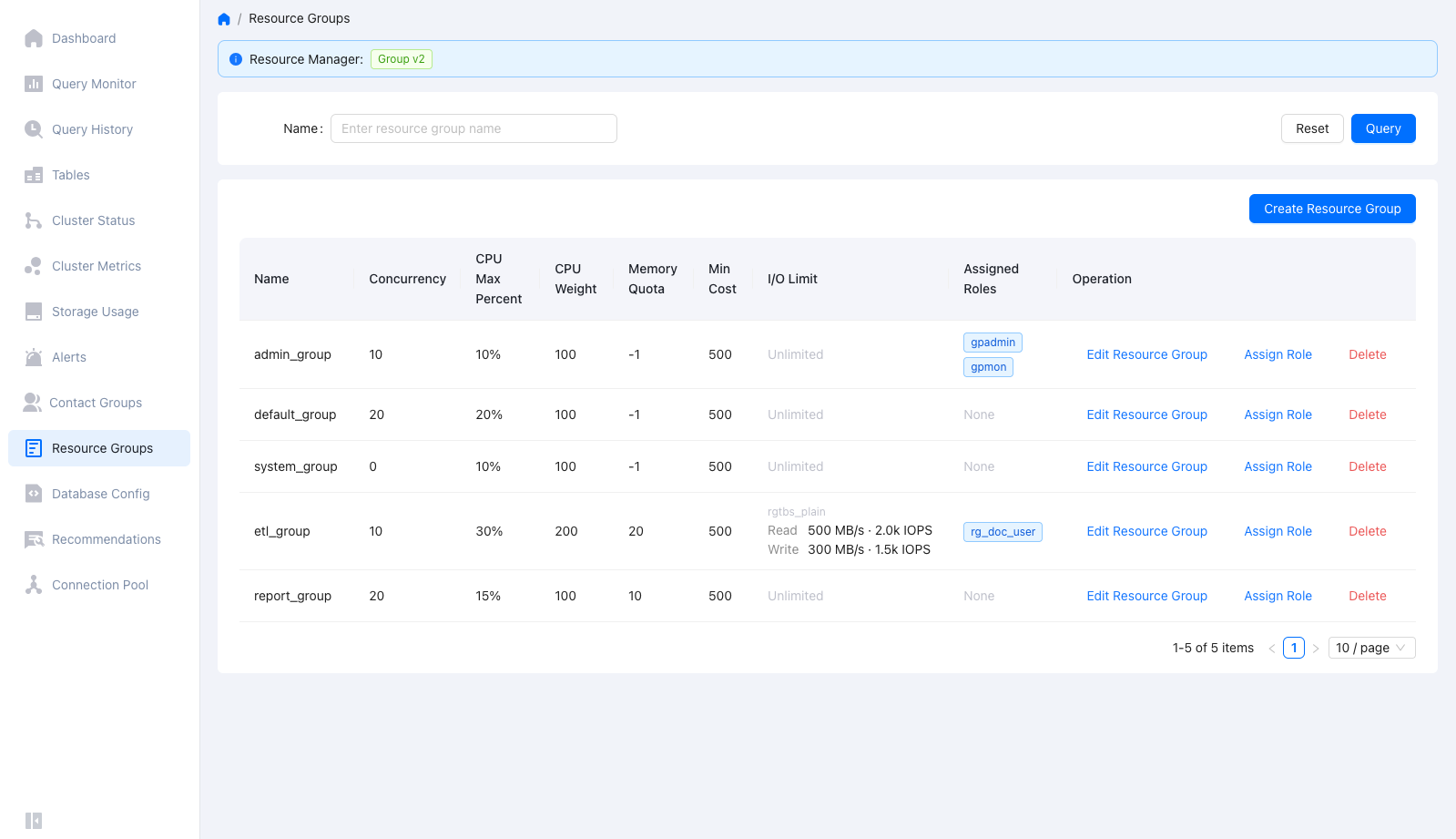
The banner at the top of the page reports the resource manager the cluster is using. Search by name to narrow a long list.
The built-in groups admin_group, default_group, and system_group always sort first, followed by your own groups in alphabetical order. Each row reports:
Column |
Description |
|---|---|
Name |
Name of the resource group. |
Concurrency |
Maximum number of concurrent transactions the group allows. |
CPU Max Percent |
Ceiling on the CPU the group can use. |
CPU Weight |
Relative share of CPU the group gets when several groups compete. |
Memory Quota |
Memory reserved for the group, in MB. |
Min Cost |
Cost threshold below which a query bypasses the group’s concurrency limit. |
I/O Limit |
Read and write throughput and IOPS ceilings, listed per tablespace. |
Assigned Roles |
Roles whose queries run under this group. |
Create a resource group
Click Create Resource Group.
Fill in the limits:
Name: required. Start with a letter or an underscore, followed by letters, digits, or underscores, up to 63 characters.
Concurrency, CPU Max Percent, CPU Weight, Memory Quota, Min Cost: DBCC pre-fills these fields with usable defaults. Adjust them to suit the workload.
Choose whether to cap disk I/O:
Unlimited: the group’s queries compete freely for disk bandwidth.
Limited: the console shows a per-tablespace editor where you set the ceilings.
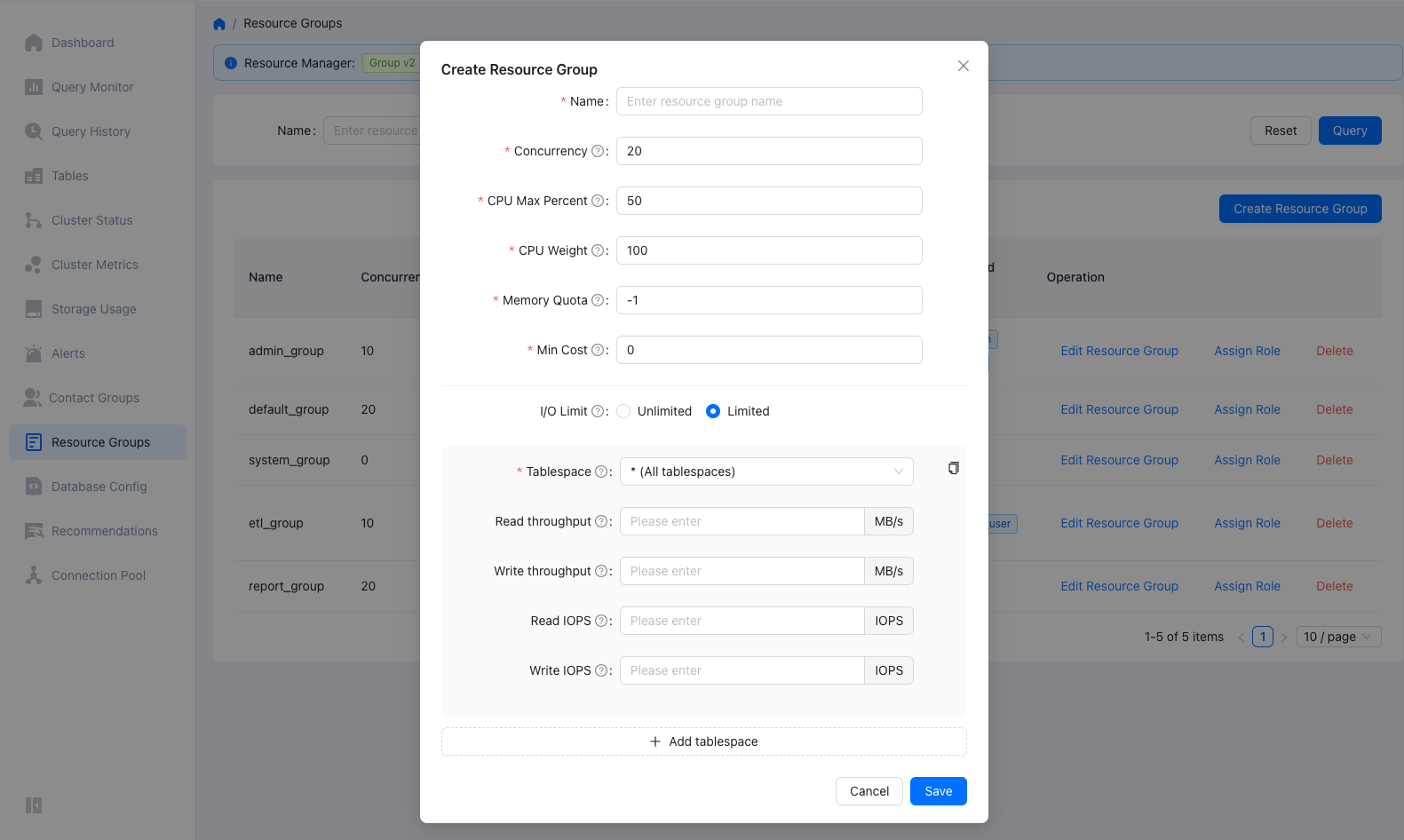
If you chose Limited, set the ceilings for one tablespace:
Tablespace: select a tablespace, or
* (All tablespaces)to apply one set of ceilings everywhere.Read throughput and Write throughput: in MB/s.
Read IOPS and Write IOPS: in I/O operations per second.
Leave a field empty to keep that measure uncapped. You can also enter
-1in a metric field to keep that metric explicitly uncapped while you cap the others. The console stores-1internally and writesmaxback to the database, which is why built-in groups whose I/O limits were ever set show-1in this form.Click Add tablespace to cap another tablespace with different values.
Click Save.
Editing a group works the same way: click Edit Resource Group on its row. The values you submit replace the group’s previous I/O limits rather than merging with them, so clearing a metric field on a row drops that limit, and removing a row drops all four limits for that tablespace.
Assign a role to a resource group
Queries run under the resource group of the role that submits them.
Click Assign Role on the row of the target group.
Select a role and click Save.
Assign one role per operation. A role belongs to exactly one resource group, so assigning it here moves it out of whichever group it was in before.
To take a role out of a group, assign it to default_group. A role always belongs to some group; there is no unassigned state.
Notes and limitations
Do not delete or repurpose
admin_group,default_group, orsystem_group. SynxDB relies on them, and roles you remove from a custom group fall back todefault_group.I/O limits apply per tablespace. A group with a ceiling on one tablespace is uncapped on the others unless you add entries for them or use
* (All tablespaces).Deleting a group that still has roles assigned fails with
resource group is used by at least one role. Reassign the roles first.Changes take effect for new queries. Queries already running keep the limits they started under.